Virtual Try-On for Shopify Plus Stores: What to Check First

Quick answer
Plus brands tend to ask a different set of questions than a five product shop. Less "does it work" and more "who signs off, what does it break, and how do we measure it." Fair. Nobody wants to explain to a board why the product page grew a surprise.
Does virtual try-on work on Shopify Plus?
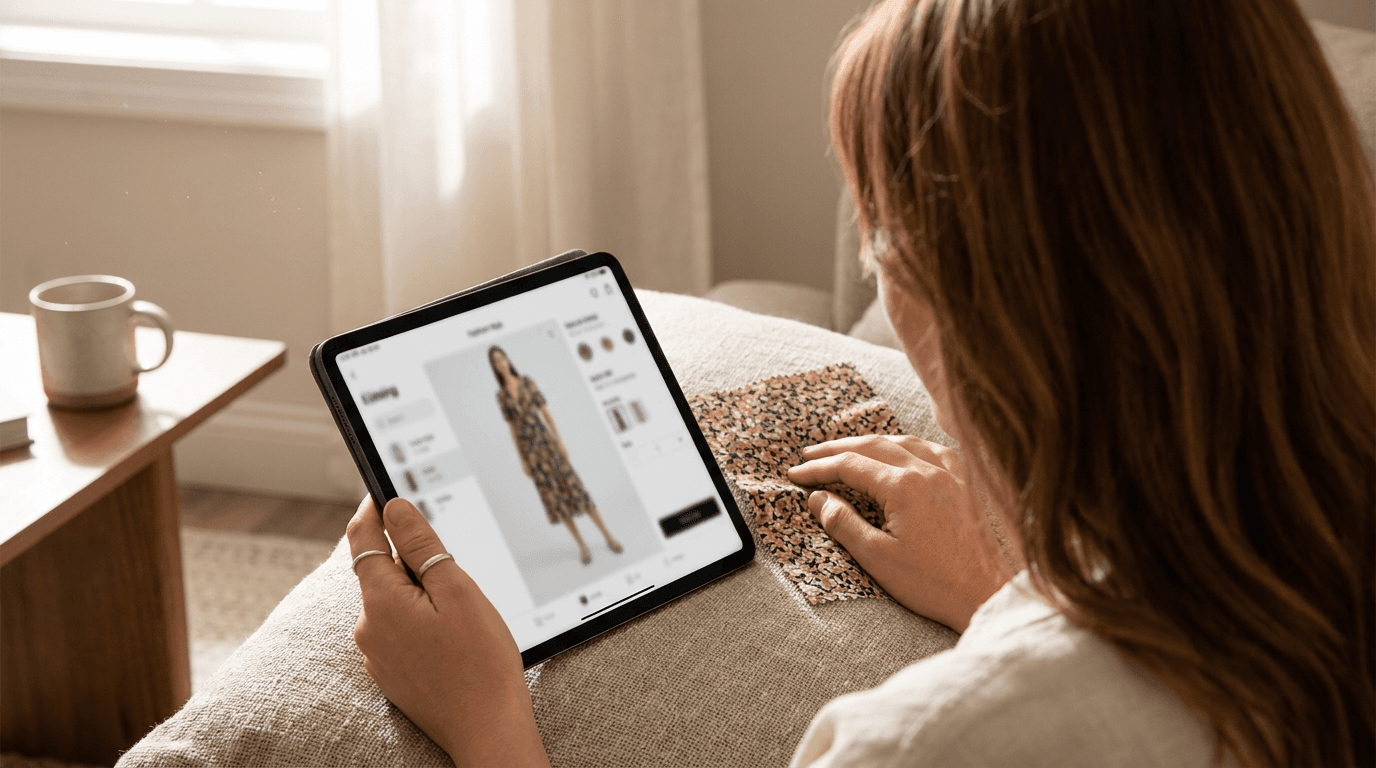
A try-on button is a product page feature. It asks the shopper for a photo, sends it with your garment image for processing, and shows the result next to the add to cart button. None of that cares whether the store is on Plus or a smaller plan.
What does matter is your theme. App blocks need an Online Store 2.0 theme, so a heavily customized legacy theme is the thing to check, not your plan. The install steps are in our guide to adding virtual try-on to a Shopify store.
Plus does change who is in the room. A merchandiser cares about which products get a button, a developer cares about theme code, and legal cares about photos. A product page block keeps the first two conversations short, because nothing outside the page changes.
What does a try-on app touch, and what does it leave alone?
Plus stores often carry custom checkout work, so the useful answer is a list of what stays untouched.
- Touched: the product page, where the block appears once you add it in the theme editor.
- Left alone: checkout, Shop Pay and any checkout extensions your team built.
- Left alone: your product data. The tool reads the garment image you point it at.
- Not stored: on Shopify, shopper photos are not saved.
Speed is the other worry. The block loads its script after the page and stays hidden until a shopper asks for it. We cover the details in does virtual try-on slow down a Shopify store.
How should a Plus brand roll it out?
Small first, then wide. A rollout that starts with the whole catalog also starts with the whole catalog's problems.
- Pick one category with a known fit problem, such as jackets or dresses, and record its return rate and conversion rate for the last full period.
- Check the garment photos. Flat, clean, well lit images render best, see how to photograph clothing for virtual try-on.
- Add the block to a duplicate of the product template and run it for a set number of weeks.
- Compare against the baseline using how to measure virtual try-on results.
- Widen to more categories only if the numbers justify it.
A duplicate template also means your merchandising team can say no without a rollback meeting. That is the whole appeal.
Pick the pilot category by pain, not by glamour. The jacket with a return rate that makes finance wince is a better test than the hero dress that already sells. If try-on helps there, the case writes itself. If it does not, you found out cheaply.
Keep the pilot honest too. Change nothing else on the page during the test, or you will never know whether the button or the new banner did the work.
What should you ask before you commit?
- Volume: how many try-ons are included each month, and what does an extra one cost? Compare against your real traffic on the pilot category.
- Storefronts: each Shopify store is installed and billed separately, so confirm the allowance for every store you plan to cover.
- Quality on your hardest items: layered pieces, long hems and heavy prints, not only a plain tee.
- Privacy: where shopper photos go and how long they stay. Our GDPR guide lists what to ask a vendor.
- Exit: how to remove the block cleanly if the pilot does not pay off.
Check the current Shopify app plans against your pilot traffic, then run the live demo on your own garments to see the output first. If you need the same experience outside Shopify's theme, the API covers custom builds.
Frequently asked questions
Does virtual try-on work on Shopify Plus?
A try-on tool that lives on the product page does not depend on your Shopify plan, only on your theme. Corlen's Shopify app is a theme app block, so you need an Online Store 2.0 theme and add the block in the theme editor.
Does a try-on app touch checkout?
Corlen does not. The block sits on the product page, so your checkout, Shop Pay setup and any checkout extensions stay exactly as they are.
Can I run it across several storefronts?
Each store is installed and billed on its own in Shopify, so confirm the plan and allowance for every storefront you want it on. Start on one store and compare results before you widen the rollout.
Are shopper photos stored?
On Shopify, Corlen does not save shopper photos. They are processed to make the result and are not kept, which makes the privacy review with your legal team shorter.
Ready to add real try-on to your store?
Install Corlen on Shopify in minutes, or build it into your own platform with the developer API.
Similar posts
Virtual Try-On for Shirts and Blouses: A Store Owner Guide
Selling shirts and blouses online? See what virtual try-on shows well (drape, sleeves, open or closed fronts), what it cannot, and how to test your catalog.
Read articleGuidesVirtual Try-On for Webflow Ecommerce Stores
Running a clothing store on Webflow Ecommerce? See how a try-on button fits through custom code, why the API key needs a server, and what to test first.
Read articleGuidesVirtual Try-On for Magento and Adobe Commerce Stores
Running a clothing store on Magento or Adobe Commerce? See how a try-on API fits into a custom module, what a developer builds, and what to test first.
Read articleSee it on your own photo
Corlen shows your customers how any garment looks on their own body, in seconds. Try it free, no account needed.
Try Corlen free